Frexa VPN · Android TV
VPN for Android TV — connect in minutes
Download Frexa VPN on your TV and sign in with a code on the website from your iPhone, Android phone, or computer. QR sign-in is also available in the Android app.
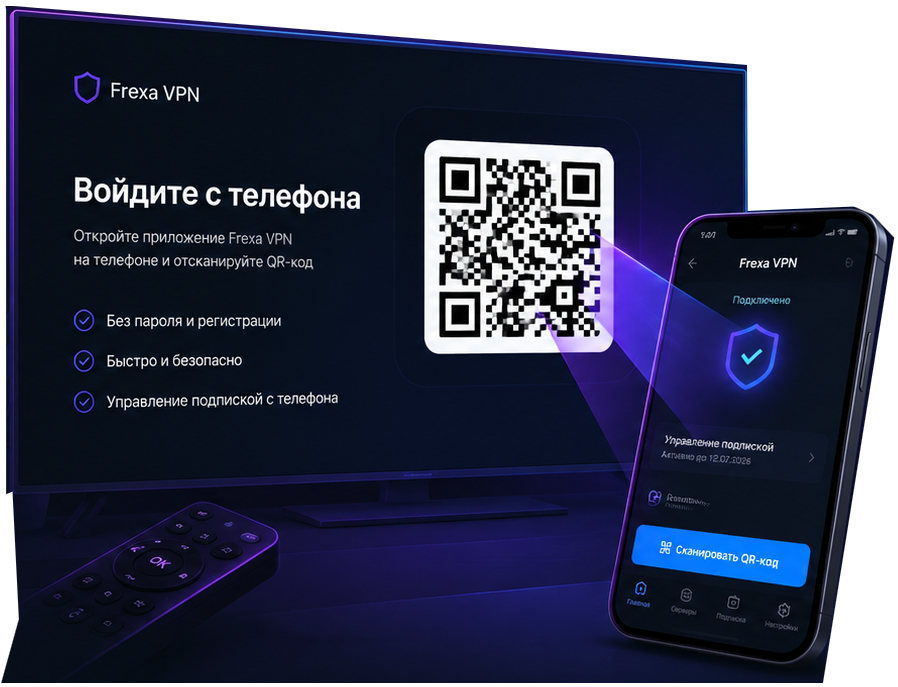
Secure sign-in with a QR code or short code
Start free with 1 GB and no registration
Stable connection for video and streaming
No activity or browsing-history logs
How to download VPN for Android TV
Install Frexa directly from Google Play on your TV or streaming box.
- 1
Open Google Play
From the Android TV home screen, open Apps and then select the Google Play Store.
- 2
Find Frexa VPN
Search for “Frexa VPN” with your remote or voice search and select the TV app.
- 3
Install and open
Select Install, wait for the download to finish, then open Frexa VPN on your TV.
Sign in with your TV code
Connect your TV on the website
Open the website in a browser on your iPhone, Android phone, or computer. Sign in to the same Frexa VPN account with an active personal paid subscription. No mobile app is required.
Connect TV on the website- 1
Open Frexa VPN on TV
Keep the pairing code screen open. The code is valid for 5 minutes and can only be used once.
- 2
Sign in on the website
Select “Connect TV on the website” and sign in to your account with a subscription. Use the same account as on your phone.
- 3
Enter the TV code
Enter the 8-character code from your TV in the XXXX-XXXX format on the website, then view the device details.
- 4
Approve the device
Check the account and TV model, then approve the sign-in. Your TV signs in automatically.
On an Android phone, you can also use the Frexa VPN app: open Settings → Android TV sign-in. Scan the QR code on your TV or enter the code manually, then approve the device.
Download the Android app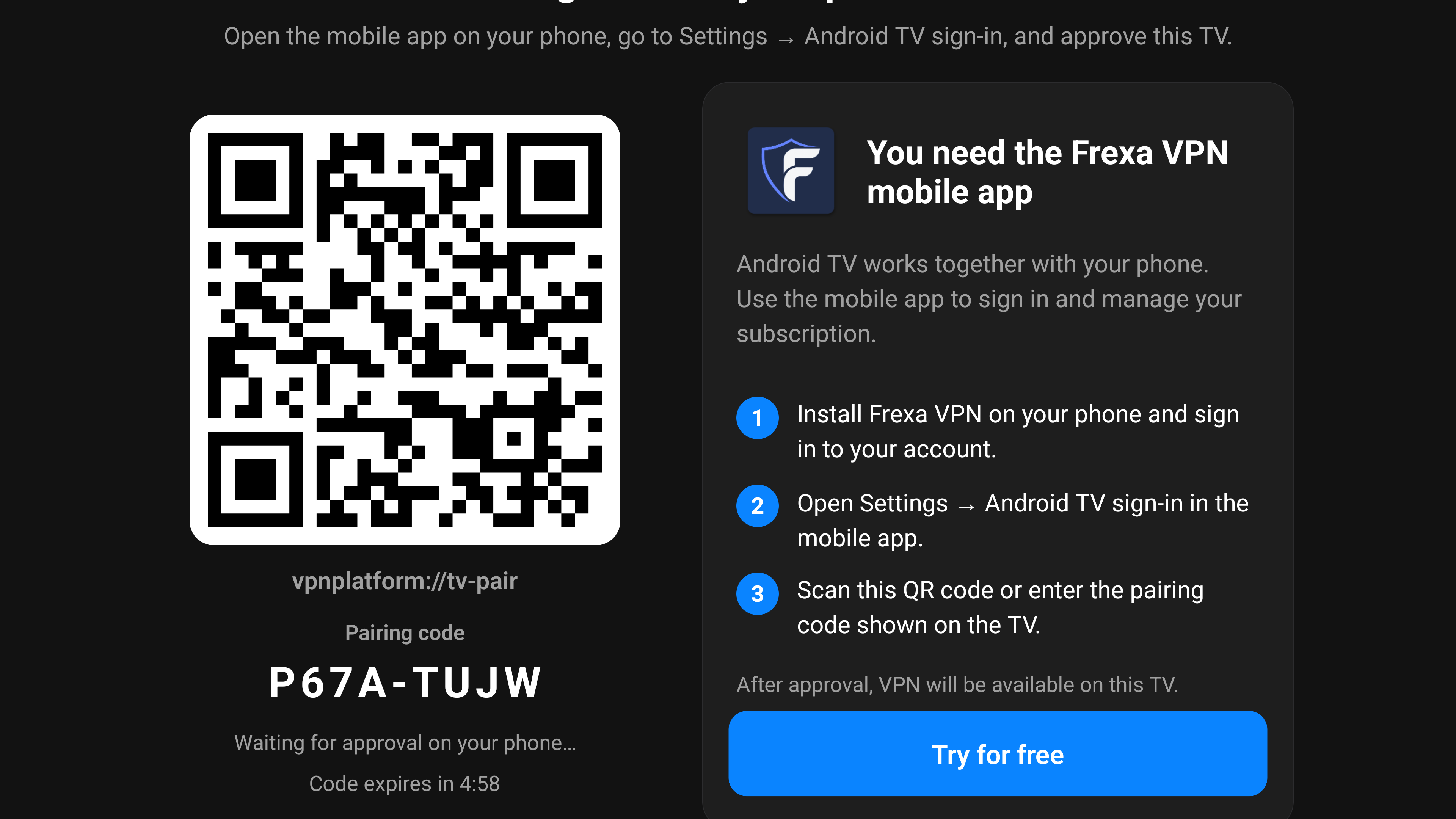
Free VPN for Android TV without an account
Select “Try for free” on the first screen to get 1 GB of traffic and free locations. Once the allowance is used, link an account with an active subscription.
Setup on popular devices
Once installed, pairing and connection work the same way on every Android TV and Google TV device.
VPN for Android TV APK
The Frexa VPN APK for Android TV is available through the official link. Use only the link on this page to download the latest secure installer.
Download APK for Android TVSupported TVs and streaming boxes
Frexa supports Android TV and Google TV, including Xiaomi, Sony, NVIDIA Shield, Chromecast, TCL, Hisense, and compatible boxes. Fire TV, Apple TV, webOS, and Tizen are not supported yet.
Android TV VPN questions
Ready to connect your Android TV?
Install Frexa VPN on your TV, start free, or link your subscription in just a few minutes.